The ticket is in their pocket, not their inbox.
Buyers add their tickets to Apple Wallet in one tap, and the door scans the pass like any ticket.
Sign upIncluded on every plan, Seva included.
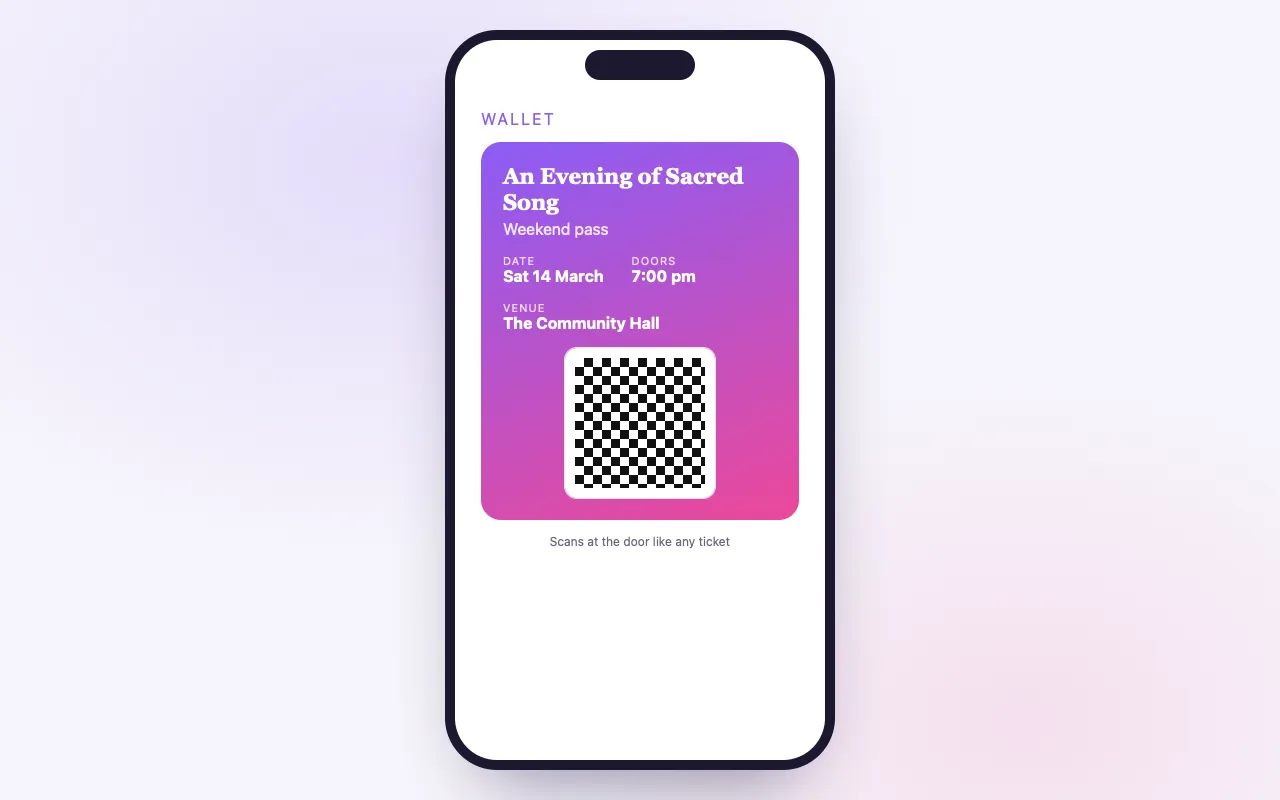
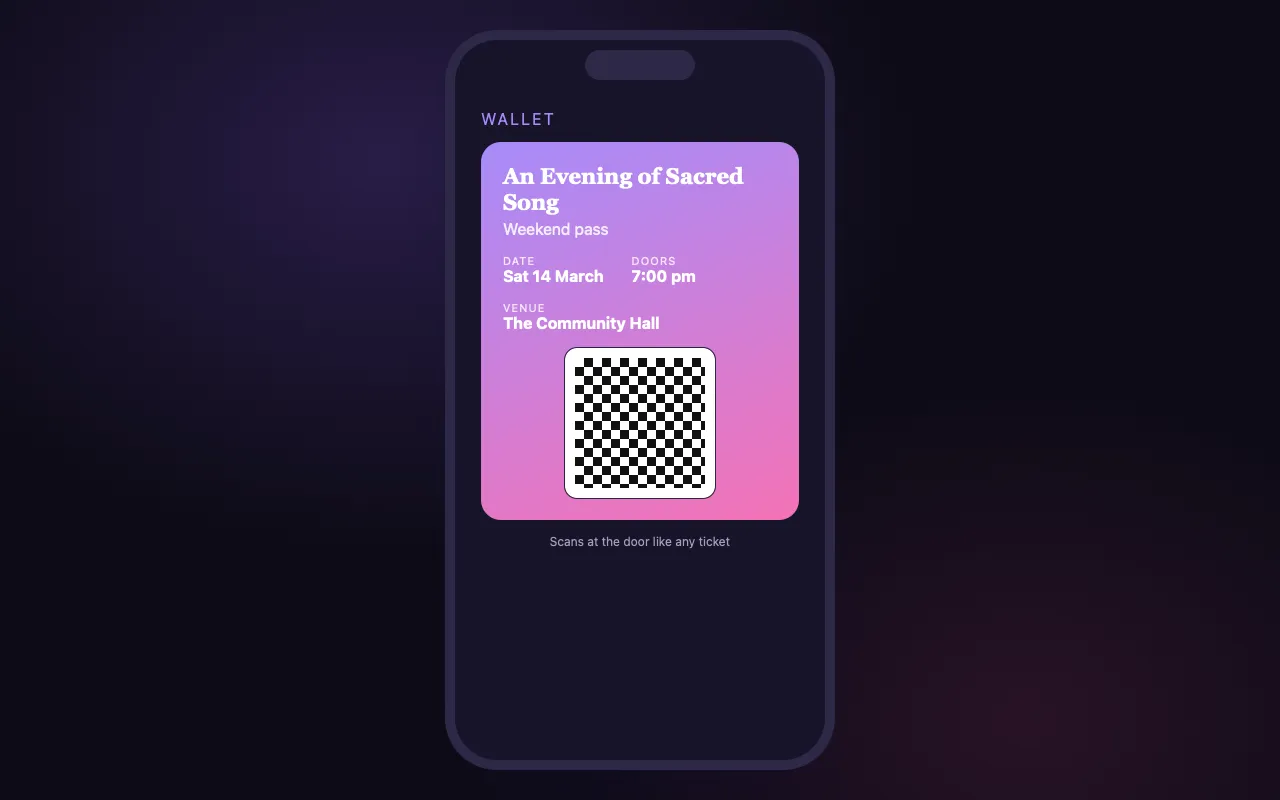
No hunting for an email at the door
One tap after buying
An Add to Apple Wallet button on the confirmation page, in the confirmation email and on My Tickets.
Everything on the pass
The event, date, venue, the attendee’s name, the ticket type and the seat when there is one.
Scans like any ticket
The pass carries the ticket’s own QR code, so check-in works the same from the Wallet as from the email.
How it works
They buy
The confirmation page and email carry the Wallet button.
They add it
One ticket opens straight in Wallet; several get one button each.
You scan it
At the door, the pass’s QR code checks in like any other.
Loved by artists and organizers
“Not only does BrightStar offer a powerful software platform that has worked very well for my events, but their client support is the best. Their communication is personal, heart-centered, and always thoughtful.”

Peter KaterTwo-Time Grammy Winner (Client Since 2014)
“For nearly two decades, Akal (owner of BrightStar) has been lending his skills and talents in support of the Bhakti movement. His platform uniquely serves our movement with authenticity and heart. The technology also rocks!”

Jai UttalGrammy Nominee (Client Since 2014)
“We've been so happy with the outstanding customer service that we've received while working with BrightStar, and feel great about supporting a company that is authentically committed to the ideals of higher consciousness.”

Eric ForbisFounder, BuddhaFest (Client Since 2012)
Questions organizers ask
Can buyers add event tickets to Apple Wallet?
Yes. Every ticket sold on BrightStar can be added to Apple Wallet, on every plan, at no cost.
Where is the Add to Apple Wallet button?
On the confirmation page right after buying, in the confirmation email, and on each ticket in My Tickets.
What does the Wallet pass show?
The event’s name, the date, the venue, the attendee’s name and ticket type, the seat for seated events, and the QR code.
Does the door scanner read Wallet passes?
Yes. The pass carries the same QR code as the ticket in the email, so it checks in the same way.
What if someone bought several tickets?
They get a page with one Add to Apple Wallet button per ticket, so each guest’s pass can be added or passed on.
Do I need to set anything up?
No. Wallet passes are made for every ticket automatically; there is nothing to switch on.
Is there a Google Wallet pass?
Not yet. Android buyers have their QR code in the confirmation email and on My Tickets, which scan the same way.
Do I need the BrightStar app to use the pass?
No. The pass lives in the iPhone’s own Wallet app.
Read more
The moment at the door
Every organizer has watched it happen. A guest reaches the front of the line, opens their email and starts searching. The signal is weak, the inbox is full, and the message is from three weeks ago. Behind them the line grows. A ticket in Apple Wallet avoids that moment. It sits in the same place as a boarding pass, opens in a moment and shows the QR code clearly.
How a guest adds a ticket
There are three places where the Add to Apple Wallet button appears: on the confirmation page straight after buying, in the confirmation email, and on each ticket under My Tickets in the guest’s account. The reminder emails before the event carry the Wallet link as well. One tap adds the pass. There is nothing to download and no account to create.
What the pass shows
The pass carries what a guest and a door helper need: the name of the event, the date, the venue, the attendee’s name and the ticket type. For events with assigned seating it shows the seat. And it shows the QR code, which is the ticket’s own code, the same one that is in the email.
One pass for each ticket
A buyer with several tickets is shown a page with one button per ticket. Each ticket becomes its own pass. A guest can add all of them to their own Wallet, or each member of the party can add theirs on their own phone once the ticket has been shared with them.
At the door
Your team scans a Wallet pass exactly as they scan a ticket from an email or a printout. Because the code is the same, the result is the same: a valid ticket is checked in, a ticket that was already used says so, and a voided ticket is refused. No special setting is needed in the scanner.
Nothing to set up
Wallet passes are made automatically for every ticket on every event. There is no switch to turn on, no design to upload and no certificate to manage. If you sell a ticket on BrightStar, the pass exists.
Android
There is no Google Wallet pass yet. Guests with Android phones use the QR code in their confirmation email or under My Tickets, which scans in the same way. A screenshot of the code also works at the door, though it can only be used once like any ticket.
Printed tickets
Some guests prefer paper, and some gatherings ask for phones to be put away. For in-person events, the reminder emails include a printable ticket. Paper, email, My Tickets and Wallet all carry the same code and are interchangeable at the door.
What to tell your guests
A single line in your reminder note helps: add your ticket to Apple Wallet before you leave home, so it is ready at the door. Guests who have done so move through the entrance in seconds, and those behind them notice.
For venues with weak signal
Halls with thick walls, basements and rural retreat centers often have poor reception. A pass saved in Wallet is stored on the phone and opens without a connection, so the guest can always show their code. Your scanner still needs a connection to check the ticket against your live guest list, so a stable network at the door remains important.
Sharing and Wallet
When a buyer shares a ticket with a friend, the friend receives their own email with the ticket and can add it to their own Wallet. The person who arrives is the person holding the pass.
Why such a small thing matters
Arrival sets the tone of a gathering. A door that moves calmly lets people come in settled, greeted by name, not flustered from a search through their inbox. Much of what makes an event feel well held is made of small conveniences like this one.
Privacy
The pass contains what is printed on the ticket and nothing more. Adding it does not give BrightStar or the organizer access to anything else on the guest’s phone.
Where it is included
Apple Wallet tickets are part of every plan, including Seva, at no cost, for every ticket.
An example
A concert for six hundred opens its doors forty minutes before the start. Guests who added their pass before leaving home hold up their phones as they reach the door, and each scan takes a moment. A group of four arrives on one order: the buyer shared three tickets during the week, so each friend has their own pass on their own phone, and they do not need to arrive together. One guest’s battery has died; she gives her name and is found on the guest list. The line never stops.
Wallet and the rest of the journey
The Wallet pass is one part of a larger design: the confirmation with the ticket, reminders that bring the ticket back to the top of the inbox, My Tickets for those who sign in, and the guest list by name for those who arrive with nothing at all. Each covers a different kind of guest. Together they mean that a valid ticket holder is always able to get in.
For multi-day gatherings
A festival pass or a retreat ticket is scanned on arrival like any other. Guests who keep the pass in their Wallet have it to hand for the whole stay, without needing the original email again.
Payments, powered by Stripe
Every ticket is paid through Stripe into your own Stripe account, with the ways of paying your buyers already use.
See the feature →Buy now, pay later
Guests can spread the cost of a bigger ticket with Klarna, Afterpay, or Affirm, and you receive the full amount when they book.
See the feature →Multi-Currency
Choose the currency for each event, and BrightStar presents it clearly to buyers wherever they are, in their language.
See the feature →Sell worldwide
Pages, checkout and emails in seven languages, a currency for each event, and payments through Stripe wherever it works.
See the feature →Ticket Categories
Group your ticket types into clear categories, so buyers see the shape of your event and find their ticket fast.
See the feature →Rooms and stays
Guests choose their room as they buy their ticket, and every bed is counted so nothing is sold twice.
See the feature →See allThere is more to see.