Tell it what you need. It gets it done.
Assistant is the assistant in your dashboard: ask in your own words, check the change on one card, tap to apply.
Sign upIncluded on every plan, Seva included.
Routine changes, without learning the software
It does the work
New date or venue, a ticket type added or repriced, a discount code, a weekly sales report to your inbox: Assistant makes the change for you.
You confirm every change
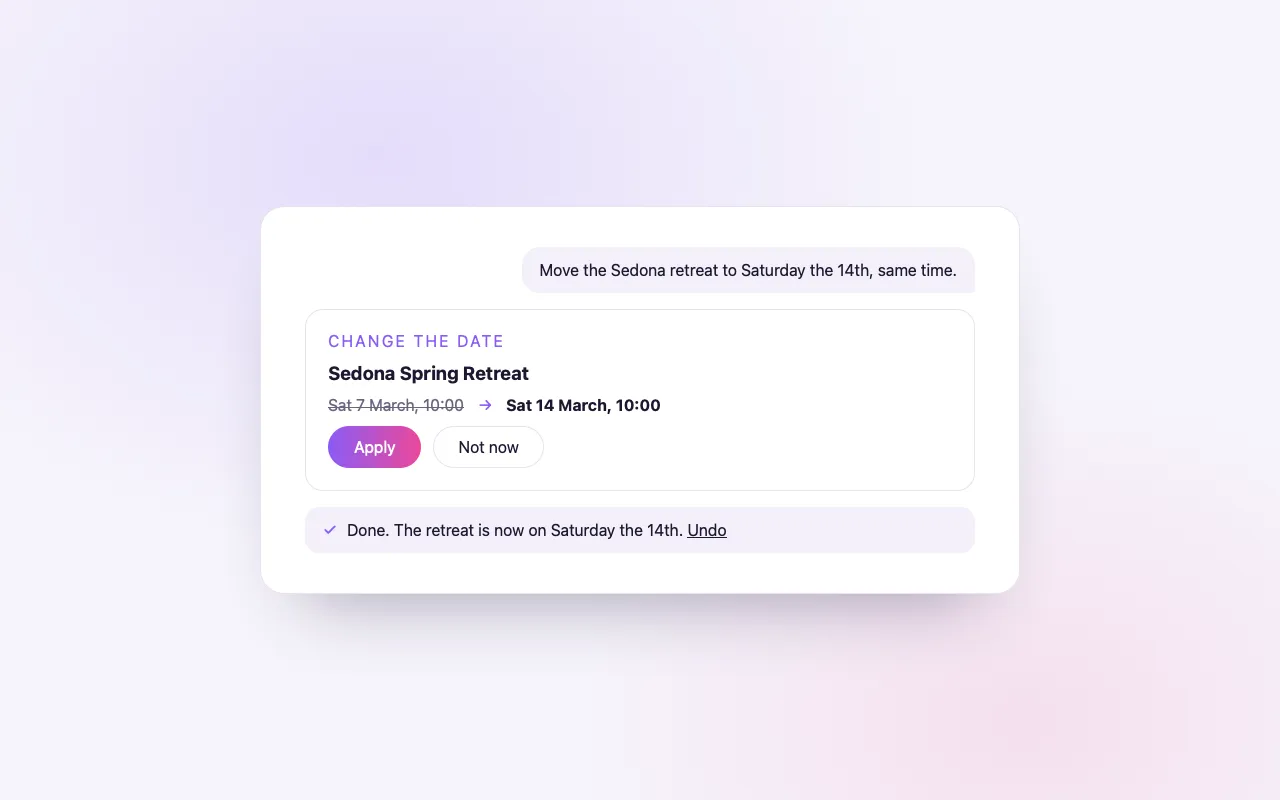
Each change appears on a card with what it was and what it will be. Nothing happens until you tap Apply, and Undo puts it back.
Your account, and only yours
Assistant can do only what you could do on that screen yourself. Refunds, cancellations, payouts and sending messages stay your own tap.
How it works
Ask in plain words
“Move the Sedona retreat to the 14th”, “add a student ticket”, “email me sales every Monday”.
Check the card
Assistant shows exactly what will change, before and after.
Tap to apply
It is done. Changed your mind? Undo.
Loved by artists and organizers
“Not only does BrightStar offer a powerful software platform that has worked very well for my events, but their client support is the best. Their communication is personal, heart-centered, and always thoughtful.”

Peter KaterTwo-Time Grammy Winner (Client Since 2014)
“We've been so happy with the outstanding customer service that we've received while working with BrightStar, and feel great about supporting a company that is authentically committed to the ideals of higher consciousness.”

Eric ForbisFounder, BuddhaFest (Client Since 2012)
“For nearly two decades, Akal (owner of BrightStar) has been lending his skills and talents in support of the Bhakti movement. His platform uniquely serves our movement with authenticity and heart. The technology also rocks!”

Jai UttalGrammy Nominee (Client Since 2014)
Questions organizers ask
What can Assistant do for me?
Change an event’s title, date, time, venue or city; rewrite its description; set its cover image; add, rename or reprice ticket types; create discount codes; pause or resume sales; move an event to another plan; schedule sales reports; build buyer and sales reports you can download; print a door list; update your own page’s bio, links and photo.
Does Assistant change anything without asking?
No. Every change is shown on a card with the value before and after, and nothing is saved until you tap Apply. Most changes can be undone from the same card.
Can Assistant refund or cancel tickets?
No. Refunds, voids, cancellations, ticket transfers and payouts are always your own action. Assistant gives you a button to the right screen instead.
Will Assistant email my ticket holders?
It drafts the message in your voice and opens it in the message composer, filled in. You read it and press Send yourself; Assistant never sends.
Can Assistant build a custom report?
Yes. Ask for every buyer across a few events, attendees by ticket type, or sales by ticket type for a date range. You get a card with a spreadsheet download and a printable view.
Can it set up my page from my website?
Yes. Give Assistant your website and your YouTube channel, and your page is built from them: bio, photos, videos and links. You review it before it goes live.
Who can use Assistant?
The account owner, from the Assistant tab in the dashboard. On every request it checks the same permissions the dashboard does, so it can never do more than you could on that screen.
What if Assistant cannot do something?
It says so, and can pass your request to our team or record it as a feature request you can follow.
Is Assistant the same as the assistant on my event page?
No. Assistant works for you in the dashboard. The AI FAQ assistant answers visitors’ questions on your public event page. Learn more
Which plans include Assistant?
Every plan, Seva included. Some actions apply to tools of the paid plans, such as scheduled sales reports on Elevate and Amplify.
Read more
An assistant that does the task
Most software help tells you where to click. Assistant makes the change. It is the assistant inside your BrightStar dashboard, and it works in plain language: you say what you need, it prepares the change, shows it to you, and applies it when you confirm. For an organizer who is also a teacher, a musician or a parent, it removes the need to learn where every setting lives.
What you can ask for
The everyday work of running an event. Change the title, the date, the time, the venue or the city. Rewrite the description. Set the cover image. Add a ticket type, rename one or change its price. Create a discount code. Pause sales, and resume them. Move an event to another plan. Schedule a sales report to your inbox. Build a report of buyers or sales to download. Print a door list. Update the bio, links and photo on your own page.
How a change happens
You write, for example, “move the Sedona retreat to the 14th”. Assistant finds the event and prepares the change. You are shown a card with the value as it is now and the value as it will be. Nothing has been saved at this point. You tap Apply, and the change is made. If you did not mean it, you close the card and nothing happens.
Undo
Most changes can be undone from the same card. If you repriced the wrong ticket type, or changed your mind about a title, Undo puts back what was there before. This is what makes it comfortable to work quickly.
What Assistant will not do
Some actions are too consequential to be done on your behalf. Assistant does not refund orders, void tickets, cancel events, transfer tickets or move money. It does not send messages to your guests. When you ask for one of these, it takes you to the screen where you can do it yourself, so the decision is made with your own hand.
Messages, drafted for you
Writing to your guests is the one place where Assistant prepares and you send. Ask it to draft a note about a change of venue, and it writes the message in your voice and opens it in the message composer, filled in. You read it, change what you like, and press Send. Assistant never presses it for you.
Reports on request
Ask for the buyers of three events in one list, attendees by ticket type, or sales by ticket type between two dates. Assistant builds the report and gives you a card with a spreadsheet download and a printable view. For a door list, it prepares one you can print and hand to a volunteer.
Setting up your page
Give Assistant your website and your YouTube channel and it builds your page from them: a bio, photos, videos and links. You review everything before it goes live, and you can edit any part afterwards.
Safety by design
Assistant works within your account and under your permissions. On every request it runs the same checks the dashboard runs, so it cannot do anything you could not do yourself on the corresponding screen, and it cannot reach another organizer’s events. It is available to the account owner, from the Assistant tab.
When it cannot help
If you ask for something Assistant cannot do, it says so plainly. It can pass your request to the BrightStar team, or record it as a feature request that you can follow. It does not pretend, and it does not make a different change in place of the one you asked for.
Ways to phrase a request
Speak as you would to a capable assistant. Name the event and say what should be different. “Add a student ticket to the spring workshop, half the standard price, forty places.” “Pause sales for Friday’s concert.” “Email me sales for the retreat every Monday.” If you have two similar events, name the one you mean.
Assistant and the assistant on your event page
They are different things. Assistant works for you, in your dashboard, on your events. The assistant on your public event page answers visitors’ questions from what you have published. One helps you run the event; the other helps your guests decide to come.
A good habit
Read the card before you tap Apply. The card is the whole point: it is where you see exactly what will change. A few seconds there keeps an assistant’s speed together with an owner’s care.
Where it is included
Assistant is part of every plan, including Seva. Some of what it can do belongs to tools of the paid plans, such as scheduled sales reports on Elevate and Amplify; those actions apply where the event is on such a plan.
An example of a morning’s work
A retreat host sits down with her coffee and three things to do. She writes: “The venue changed for the autumn retreat, it is now at the lake house.” Assistant shows the old venue and the new one; she taps Apply. She writes: “Add an early ticket for the same retreat, thirty places.” She checks the card, corrects the price and applies it. She writes: “Draft a note to everyone booked about the new venue.” The message opens in the composer; she adds a sentence about parking and sends it herself. Ten minutes, three tasks, no menus.
Team access
Invite the people who run your events with you, give each one a role, and keep money and buyer details to those who need them.
See the feature →Ticket Scanner
One app for the door: download BrightStar Organizer, sign in with your team login, pick the event and scan.
See the feature →Email Sequences
Confirmations go out the moment someone buys, and timed reminders keep your event in mind until the day.
See the feature →Message Center
Buyer questions and refund requests arrive in one calm inbox. An AI trained on your voice drafts every reply and answers the common ones for you.
See the feature →AI FAQ Assistant
Your event page carries its own questions and answers, and an assistant on the page answers the rest from your event’s details.
See the feature →Reports
Ready-made reports, one click to CSV, or a custom builder for exactly the fields you need, scheduled to your inbox if you like.
See the feature →See allThere is more to see.